
How to Upload Website Files Using cPanel File Manager
How to Upload Website Files Using cPanel File Manager
cPanel File Manager allows you to upload, edit, organize, and manage your website files directly from your browser without using FTP software. It's a quick and convenient way to deploy your website.
Steps to Upload Website Files
- Log in to your cPanel account.
- Open File Manager from the Files section.
- Navigate to the public_html directory.
- Click the Upload button.
- Select the website files from your computer.
- Wait until the upload reaches 100%.
- If you uploaded a ZIP file, select it and click Extract.
- Verify that your website files are inside the public_html folder.
Tips
- Upload your website's main file as index.html or index.php.
- Compress large websites into a ZIP file before uploading.
- Delete unnecessary installation files after deployment.
- Keep a backup before replacing existing files.
Final Thoughts
The cPanel File Manager is an easy way to upload and manage website files. Whether you're launching a new website or updating an existing one, File Manager makes file management fast, secure, and beginner-friendly.
Was this article helpful?
Related Articles
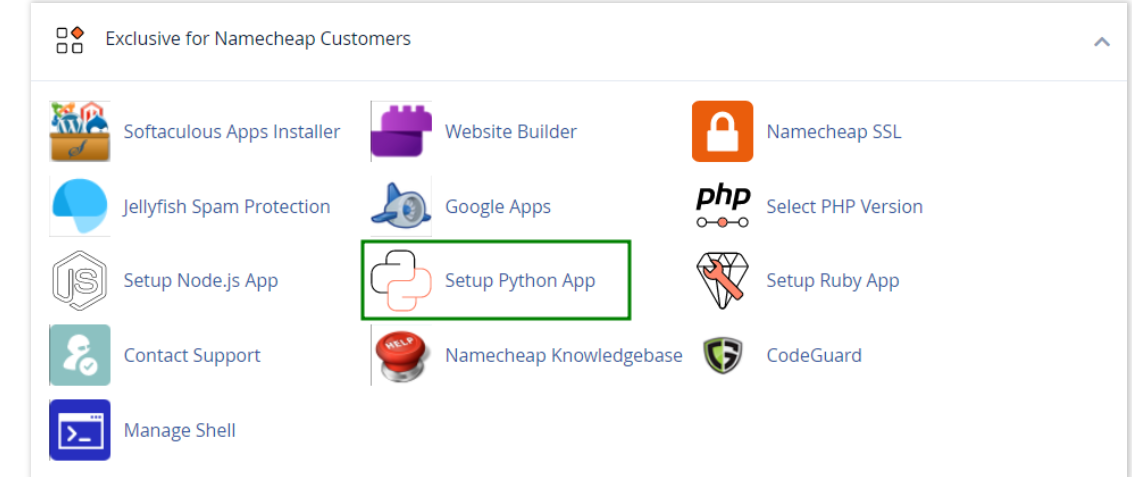
How to work with Python App
The Setup Python App feature allows you to deploy Python applications on your cPanel while running the LiteSpeed web server.
How to Check Disk Usage in cPanel
Deprecated: htmlspecialchars(): Passing null to parameter #1 ($string) of type string is deprecated in /home/u168088175/domains/banglahostbd.com/public_html/support/kb/single_article.php on line 355
How to Login to cPanel
Deprecated: htmlspecialchars(): Passing null to parameter #1 ($string) of type string is deprecated in /home/u168088175/domains/banglahostbd.com/public_html/support/kb/single_article.php on line 355