
How to Restore a Website Backup in cPanel
How to Restore a Website Backup in cPanel
If your website is damaged, hacked, or files are accidentally deleted, restoring a backup is the fastest way to recover your website. cPanel provides built-in tools to restore files, databases, and email backups.
Steps to Restore a Backup
- Log in to your cPanel account.
- Go to the Files section and click Backup or Backup Wizard.
- Select Restore.
- Choose what you want to restore, such as Home Directory, MySQL Database, or Email Forwarders & Filters.
- Upload your backup file.
- Click Restore and wait for the process to complete.
- Visit your website to confirm that everything has been restored successfully.
Before Restoring
- Create a backup of your current website.
- Verify that the backup file is complete.
- Restore the correct database if your website uses one.
- Test your website after the restoration is complete.
Final Thoughts
Restoring a backup in cPanel is a reliable way to recover your website after unexpected issues. Keeping regular backups ensures you can quickly restore your website with minimal downtime.
Was this article helpful?
Related Articles
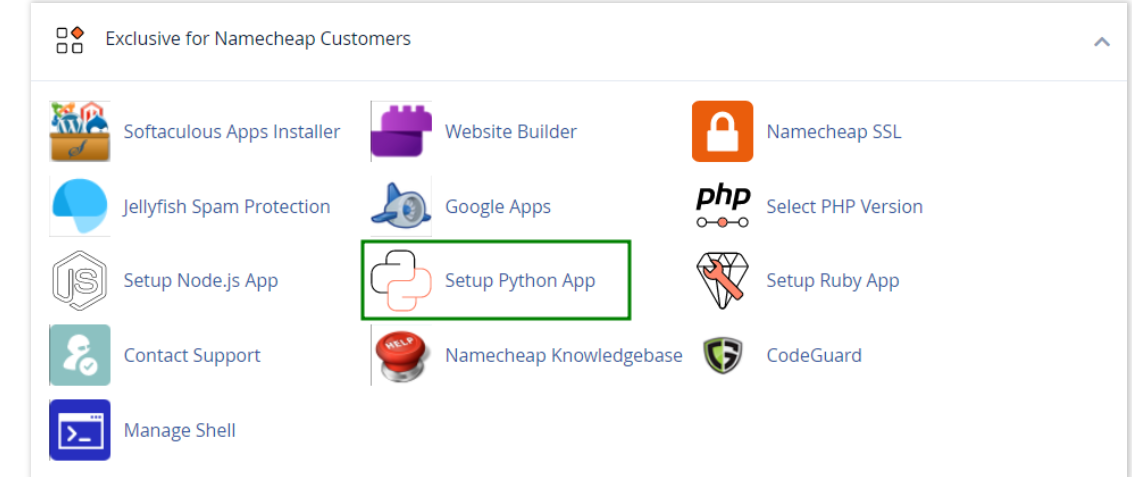
How to work with Python App
The Setup Python App feature allows you to deploy Python applications on your cPanel while running the LiteSpeed web server.
How to Check Disk Usage in cPanel
Deprecated: htmlspecialchars(): Passing null to parameter #1 ($string) of type string is deprecated in /home/u168088175/domains/banglahostbd.com/public_html/support/kb/single_article.php on line 355
How to Login to cPanel
Deprecated: htmlspecialchars(): Passing null to parameter #1 ($string) of type string is deprecated in /home/u168088175/domains/banglahostbd.com/public_html/support/kb/single_article.php on line 355