
How to Create a Redirect in cPanel
How to Create a Redirect in cPanel
URL redirects allow you to automatically send visitors from one page or domain to another. Redirects are commonly used after changing URLs, migrating websites, or forwarding old pages to new locations.
Steps to Create a Redirect
- Log in to your cPanel account.
- Go to the Domains section and click Redirects.
- Select the redirect type: Permanent (301) or Temporary (302).
- Select the domain you want to redirect.
- Enter the old URL path if needed.
- Enter the destination URL where visitors should be redirected.
- Click Add to save the redirect.
- Test the old URL to confirm the redirect is working correctly.
When to Use Redirects
- Redirect old pages to new URLs.
- Move a website to a new domain.
- Redirect HTTP traffic to HTTPS.
- Fix broken or outdated links.
Final Thoughts
Using redirects correctly helps improve user experience and preserves search engine rankings when website URLs change. Always use a 301 redirect for permanent URL changes whenever possible.
Was this article helpful?
Related Articles
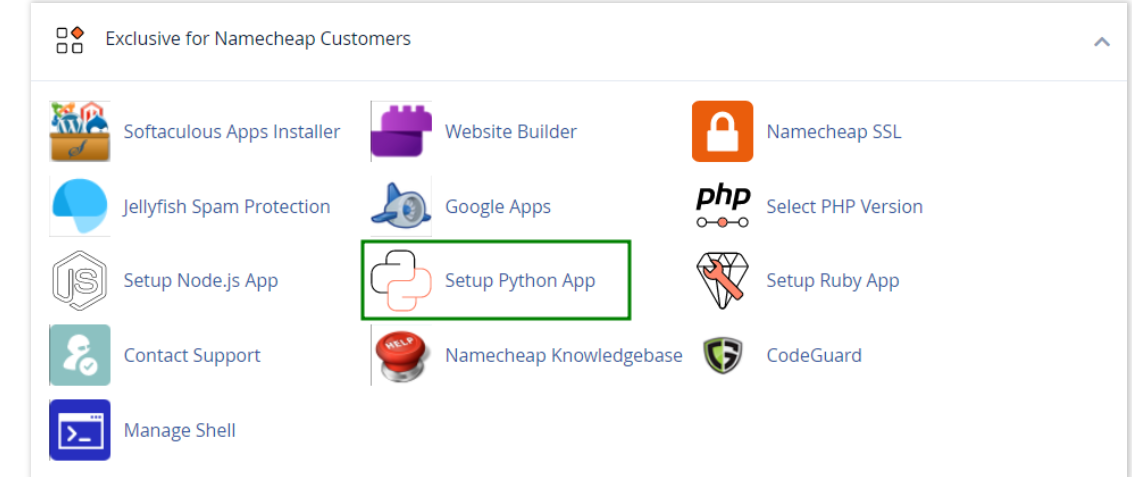
How to work with Python App
The Setup Python App feature allows you to deploy Python applications on your cPanel while running the LiteSpeed web server.
How to Check Disk Usage in cPanel
Deprecated: htmlspecialchars(): Passing null to parameter #1 ($string) of type string is deprecated in /home/u168088175/domains/banglahostbd.com/public_html/support/kb/single_article.php on line 355
How to Login to cPanel
Deprecated: htmlspecialchars(): Passing null to parameter #1 ($string) of type string is deprecated in /home/u168088175/domains/banglahostbd.com/public_html/support/kb/single_article.php on line 355