
How to Install WordPress Using Softaculous in cPanel
How to Install WordPress Using Softaculous in cPanel
Softaculous is a one-click application installer included with many cPanel hosting plans. It allows you to install WordPress quickly without manually uploading files or creating databases.
Steps to Install WordPress
- Log in to your cPanel account.
- Scroll to the Software section and click Softaculous Apps Installer.
- Select WordPress from the available applications.
- Click the Install button.
- Select your domain name and installation directory (leave the directory blank to install on the main domain).
- Enter your website name, admin username, email address, and create a strong password.
- Choose your preferred language and theme if needed.
- Click Install and wait for the installation to complete.
Why Use Softaculous?
- Install WordPress in just a few minutes.
- No manual database setup required.
- Automatic updates and backups (if enabled).
- Beginner-friendly and easy to use.
Final Thoughts
Softaculous is the fastest and easiest way to install WordPress in cPanel. After installation, you can log in to your WordPress dashboard and begin building your website immediately.
`Was this article helpful?
Related Articles
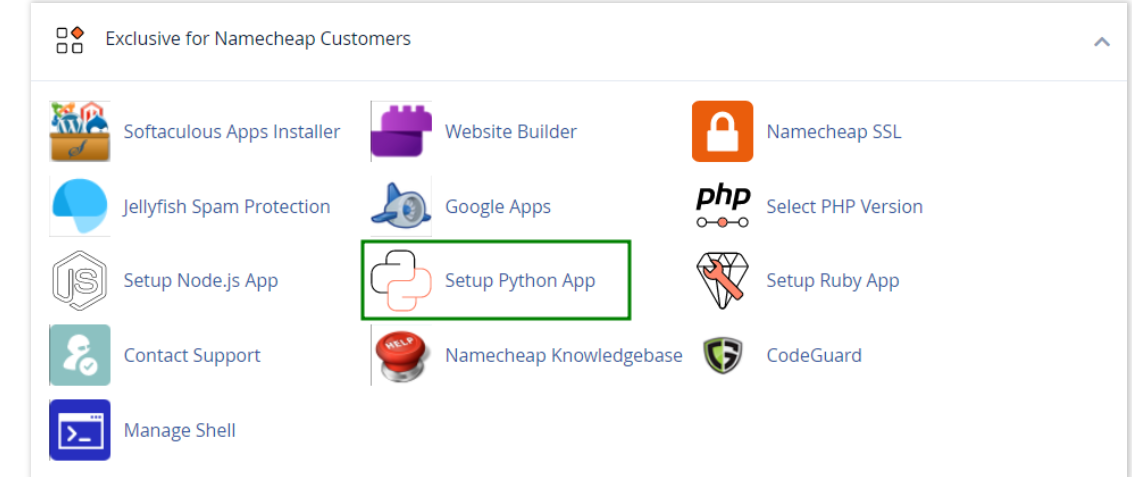
How to work with Python App
The Setup Python App feature allows you to deploy Python applications on your cPanel while running the LiteSpeed web server.
How to Check Disk Usage in cPanel
Deprecated: htmlspecialchars(): Passing null to parameter #1 ($string) of type string is deprecated in /home/u168088175/domains/banglahostbd.com/public_html/support/kb/single_article.php on line 355
How to Login to cPanel
Deprecated: htmlspecialchars(): Passing null to parameter #1 ($string) of type string is deprecated in /home/u168088175/domains/banglahostbd.com/public_html/support/kb/single_article.php on line 355